7 Days to Die Server Manual
Start here
7 Days to Die server admin journey
Move through the core workflows without bouncing back to search. Follow the steps: panel overview → game settings → console commands → FTP uploads → CSMM monitoring.
Everything you do with a 7D2D.net server happens in the control panel. This manual walks through it screen by screen: starting and stopping the server, joining it, making it private, adding admins, installing mods and modpacks, uploading your own world, changing settings, using the web console and rolling back a save. Backups over FTP and safe updates have their own user guide.
Sign up and find your way around the panel
New to 7D2D.net? Click Get Started in the top menu.

Type the email address and password you want to use and click Sign Up. Complete the security check above the button if it asks you to. By signing up you agree to our Terms of Service.
Already have an account? Click Sign in in the top menu:

Type the email address and password you signed up with and click Sign In.
The menu on the left takes you everywhere in the panel:
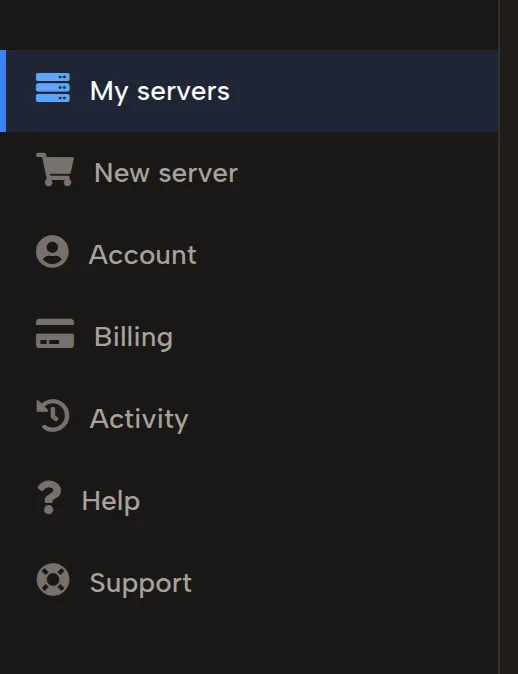
- My servers: your game servers. You can have as many as you want. Each one has a Configure button for the game options and a Manage Server button for the server actions.
- New server: order another server.
- Account: link your Steam account by typing your Steam ID and clicking Update Steam ID, change your password with Change password, or delete your account with Delete account.
- Billing: all your payments in one place.
- Activity: everything done on your account.
- Help: the FAQ and this manual.
- Support: reach us from the support page, on Discord or with the contact form.
- Other games: our servers for other games on supercraft.host. Your plan includes a server for one more game there, and the supercraft.host link signs you in with the same account.
Configure opens the game options: players, distributions and modpacks, and gameplay settings.
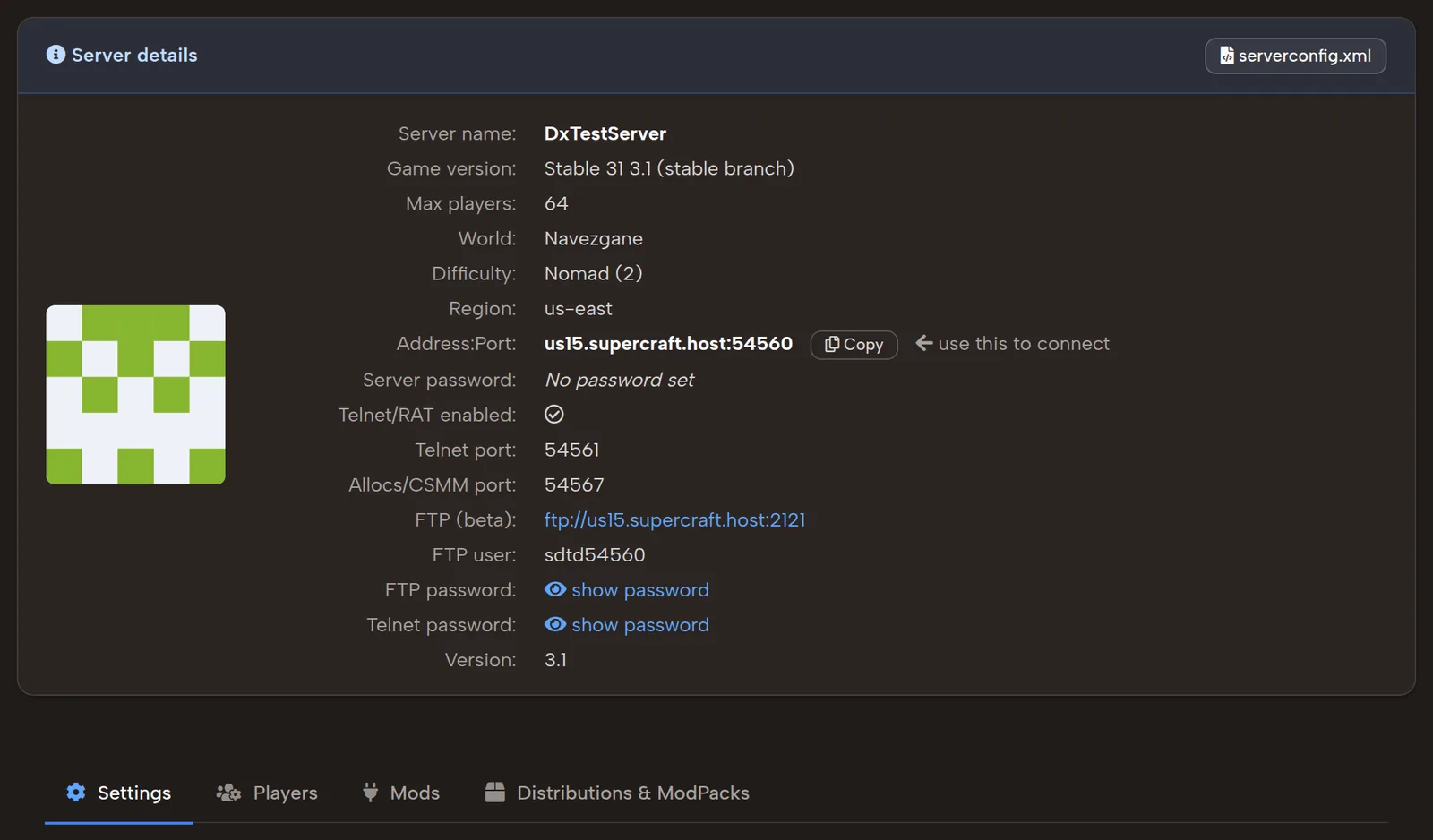
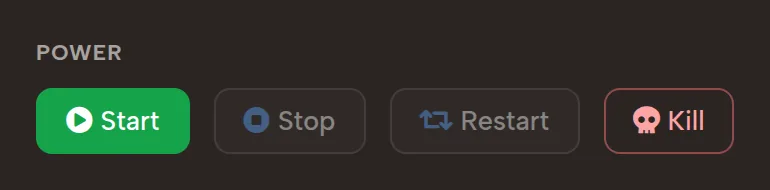
Manage Server opens the server actions, such as Start, Stop, Restart and Kill:
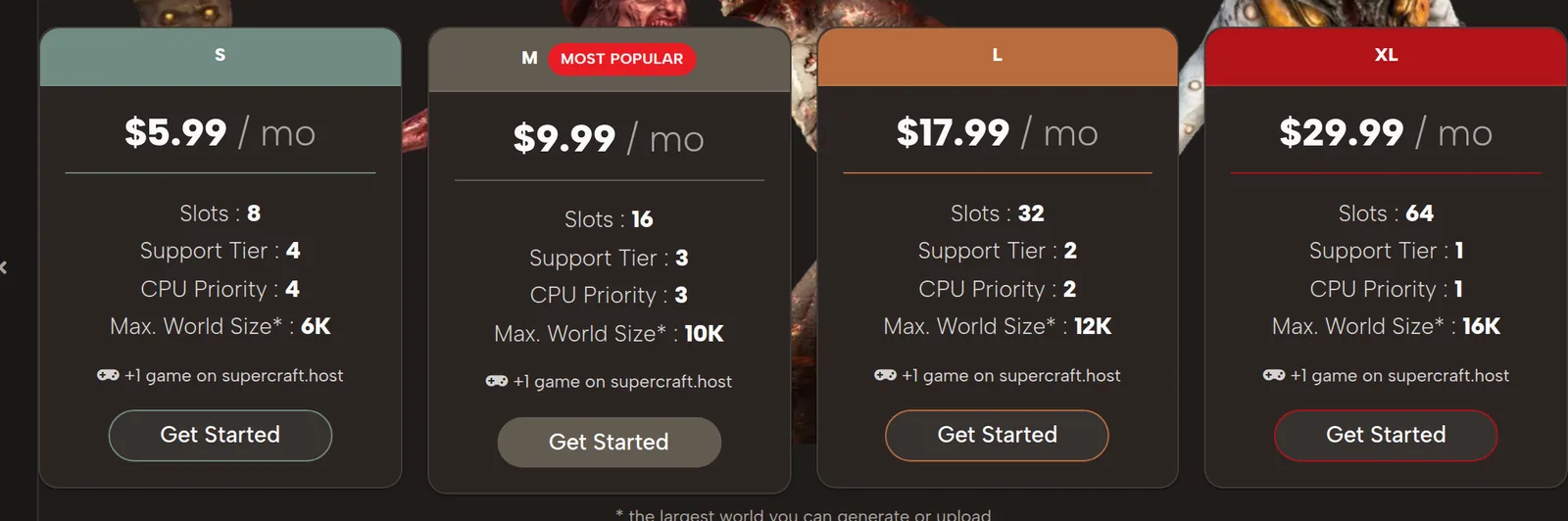
To add a server, click New server and pick one of the four plans. The plan comparison shows what each one includes.
How to start, stop and restart your server
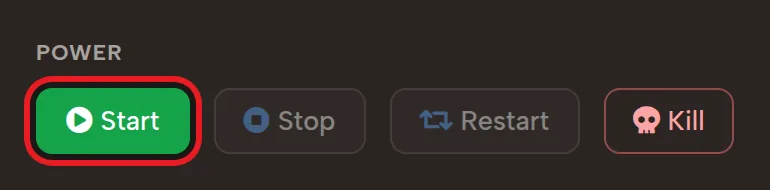
Go to My servers > Manage Server > Server management and click Start.
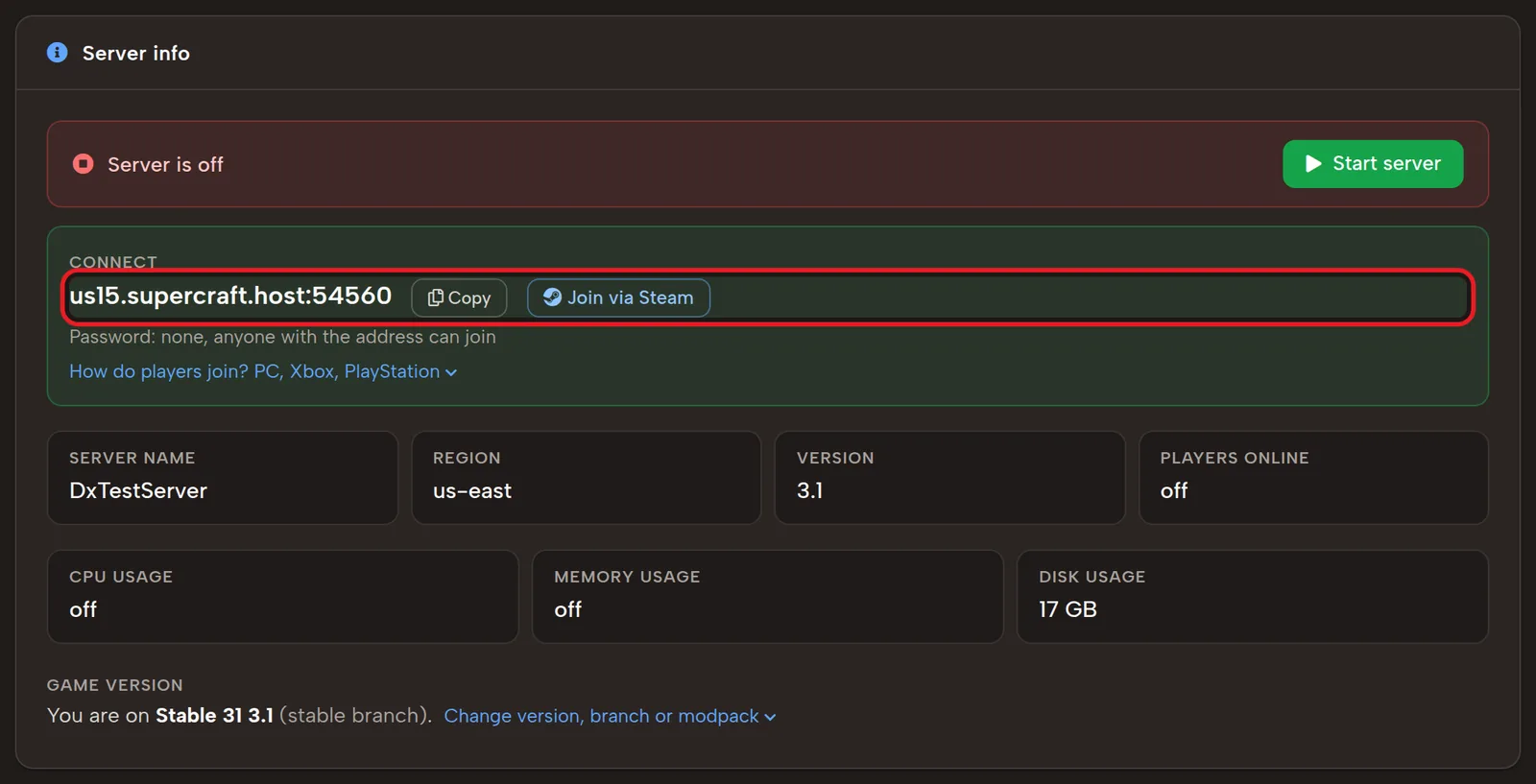
The server boots, and Server info shows its progress while it loads the world:
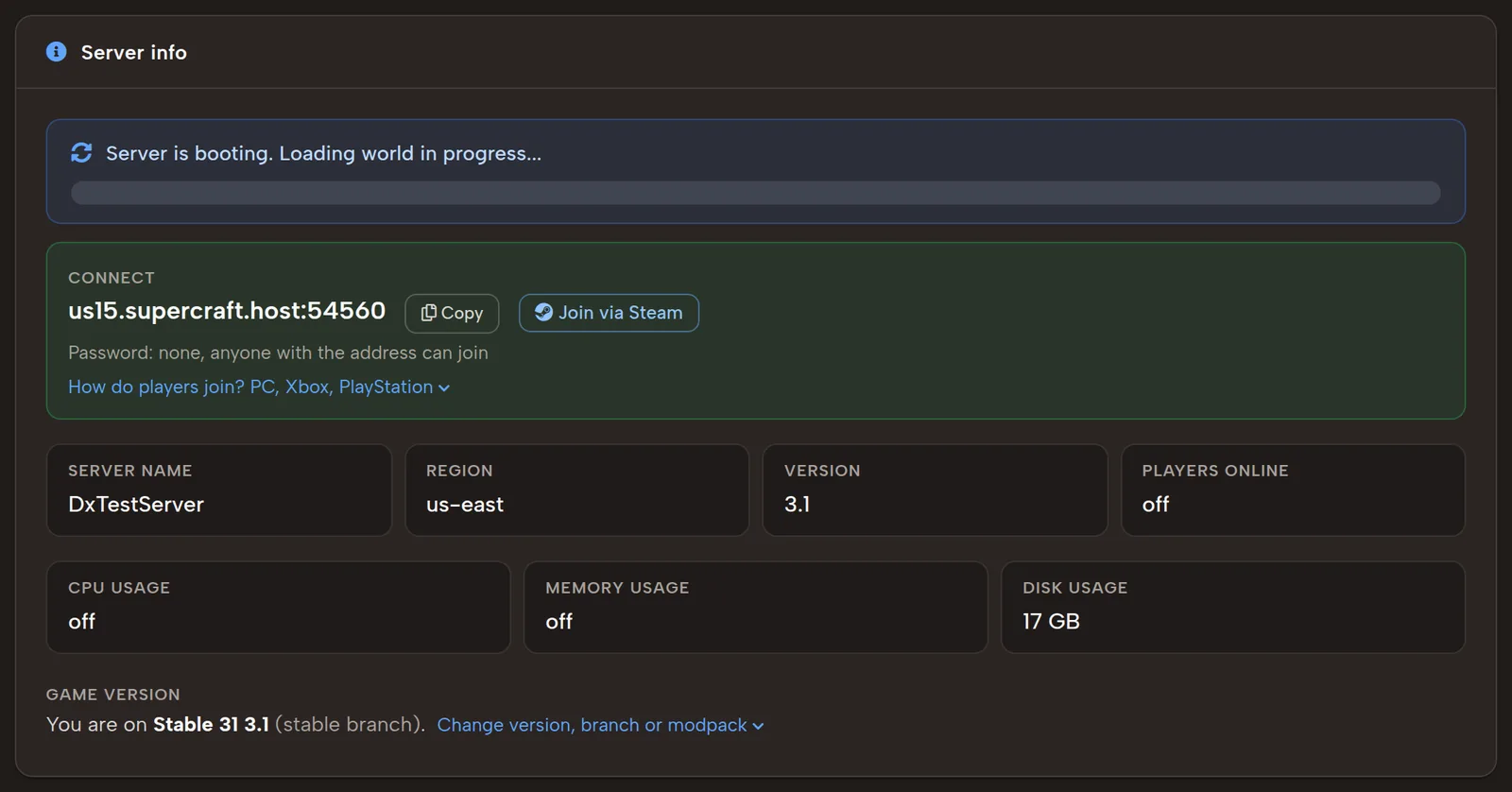
Depending on the game version or modpack, this takes from a few seconds to a few minutes.
Stop shuts the server down. It works only while the server is running.
Restart stops the server and starts it again.
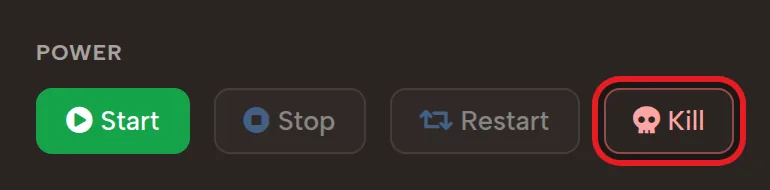
Kill ends the server process at once, even while it is still starting, without a normal shutdown. Use it only when the server is stuck.
How to join your server
Go to My servers > Manage Server. The Connect box in Server info shows your server's address and port. Copy them with the Copy button and paste them into the game, or click Join via Steam to start the game and connect in one go.
Password, whitelist, bans and admins
Set a server password
Go to My servers > Configure. Server details show the current password; click show password to see it:
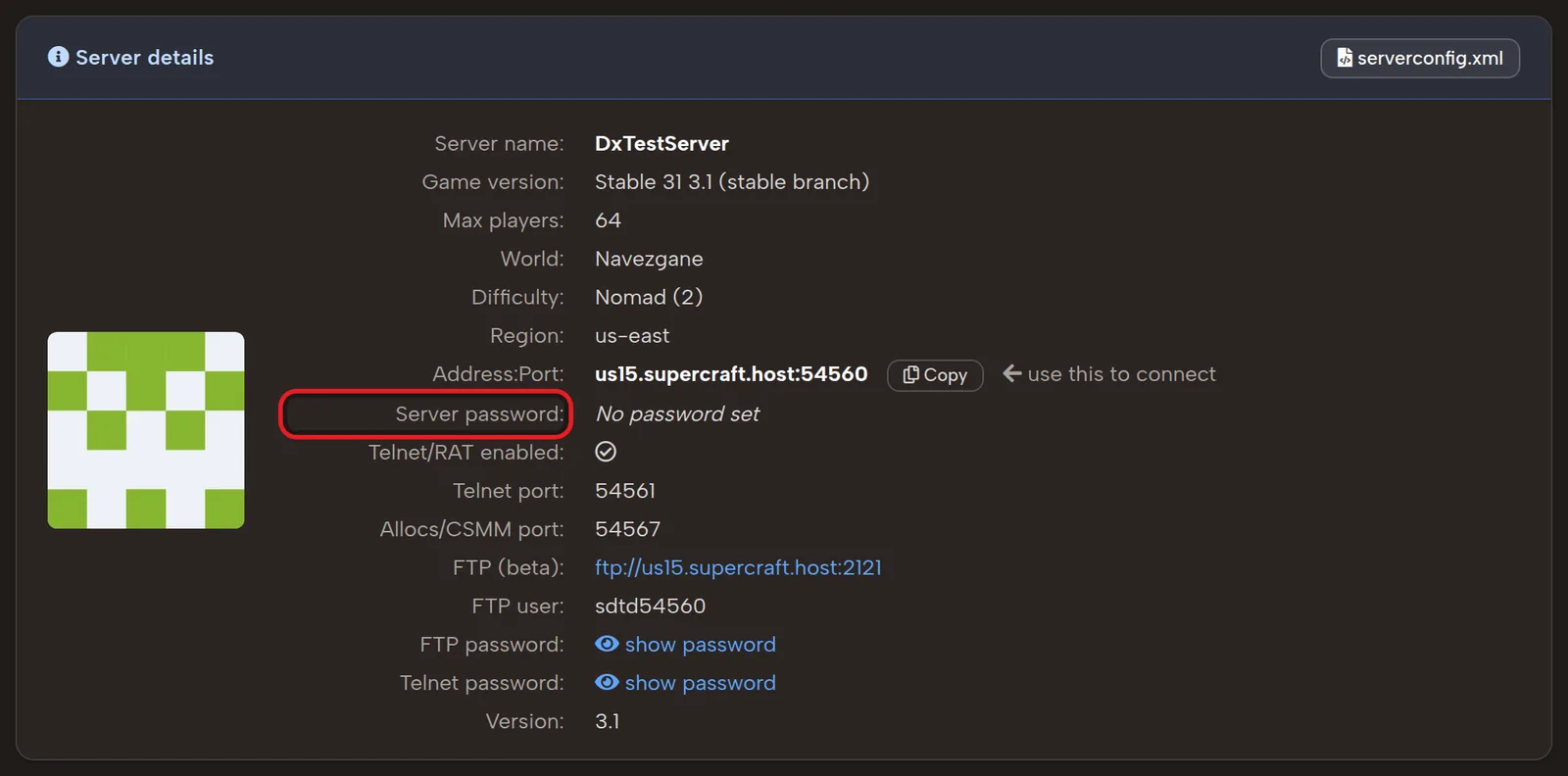
To change it, find Server Password in the settings:

Type the new password, then click Save & restart at the bottom of the page. Every player who joins needs this password.
Make the server private with allowed players
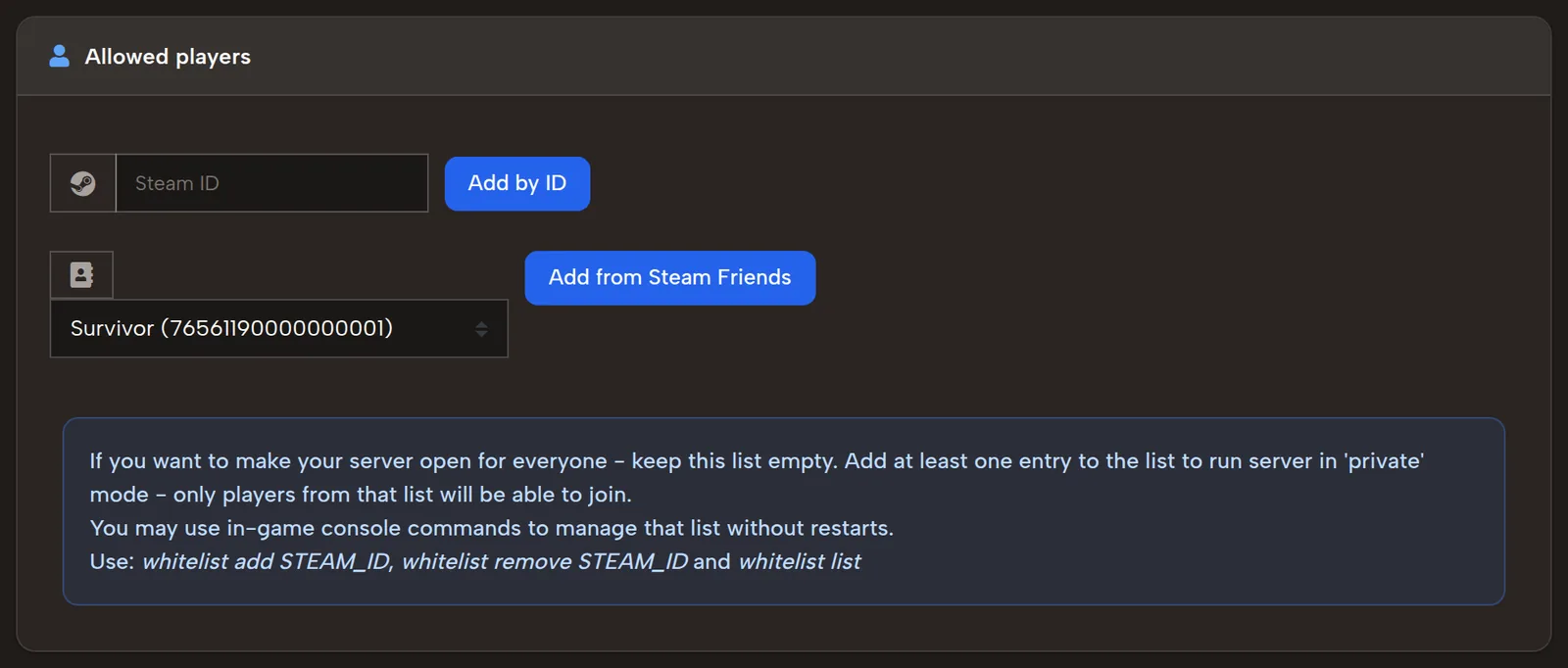
Go to My servers > Configure > Players.

Here you allow, ban or promote any player with a Steam account, by Steam ID. Link your own Steam ID in Account first: then you can add players straight from your Steam friends list.
While Allowed players is empty, anyone who knows the server password can join. Add one player and the server becomes private: from then on only players on the list can join.
Ban a player
To keep a player out, add their Steam ID to Banned players:
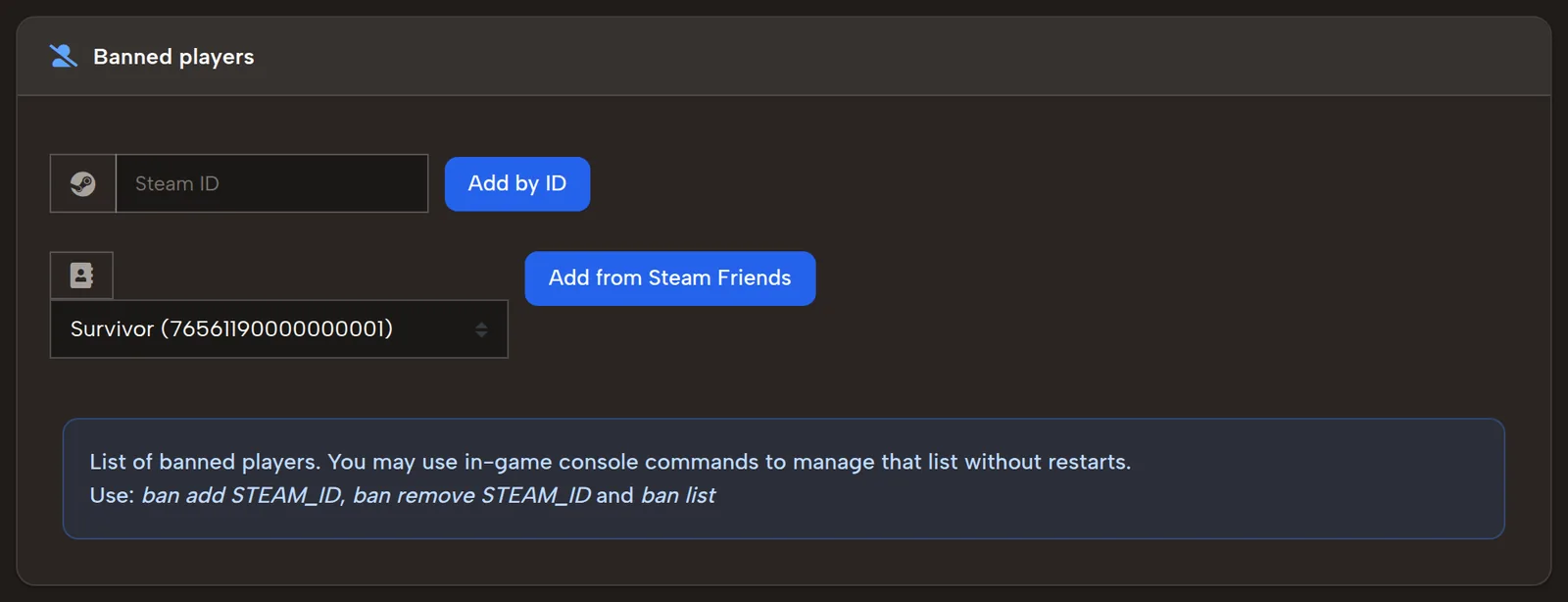
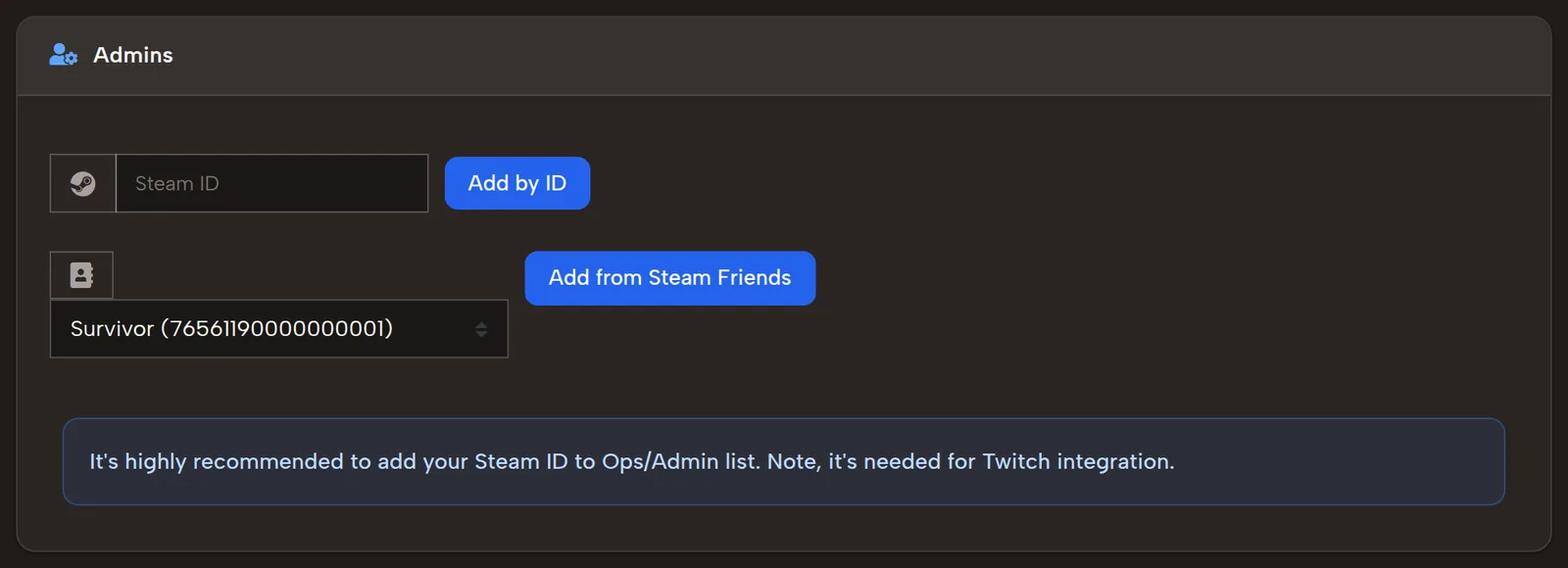
Make yourself admin
Add your Steam ID to Admins. The panel writes the lists to serveradmin.xml for you, and admins get permission level 0, the highest, so you can use every console command.
Change the game version or install a modpack
Go to My servers > Configure > Distributions & ModPacks.

The list holds every game version you can run: the stable version at the top, then the modpacks.

Open a version with the arrow at the end of its row, then install it by clicking Install Stable 3.2. The button names the version you opened.
Warning: installing a version deletes your game progress. Download a copy of your world first (see Upload or download a world).
Which plan runs which modpack: 7 Days to Die servers with mods.
How to install mods on your server
Mods need Plan M or above; Plan S runs the vanilla game. Go to My servers > Manage Server > Server management and open Files & Mods.

Type the mod's name, choose its zip file from your computer and click Upload:
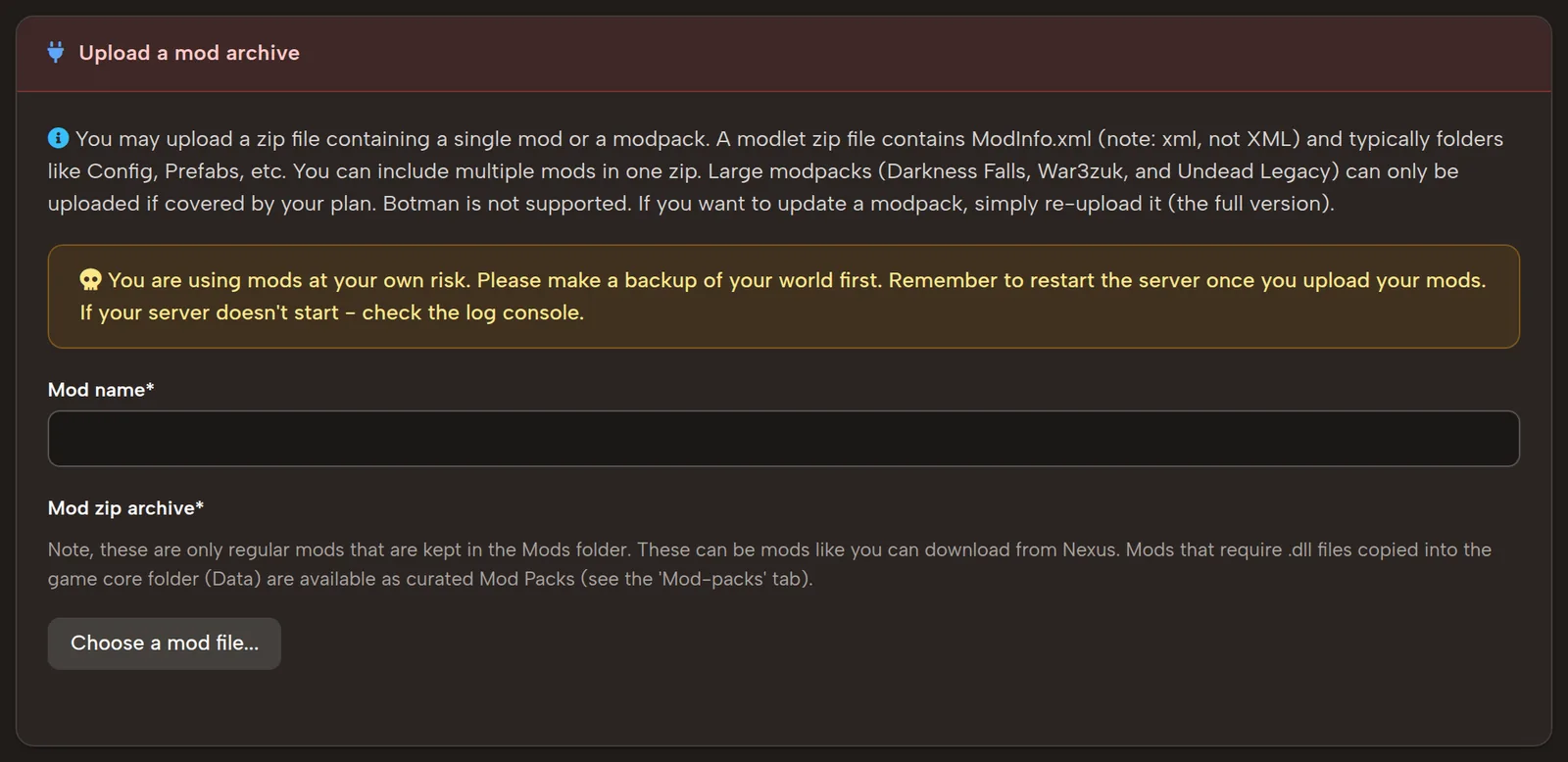
Example: find a mod you like on a site such as 7 Days to Die Mods. The Download button sits at the bottom of the mod's page, sometimes with the mod version on it:

Download the zip, choose it in Files & Mods and click Upload. Depending on the file size, the upload takes from a few seconds to a few minutes. The mod then sits in the Mods folder of the file list:

Open Mods with the arrow to see your mods. To remove one, click Delete next to it.
Upload or download a world
Go to My servers > Manage Server > Server management, open Files & Mods, choose your world's zip file and click Upload:
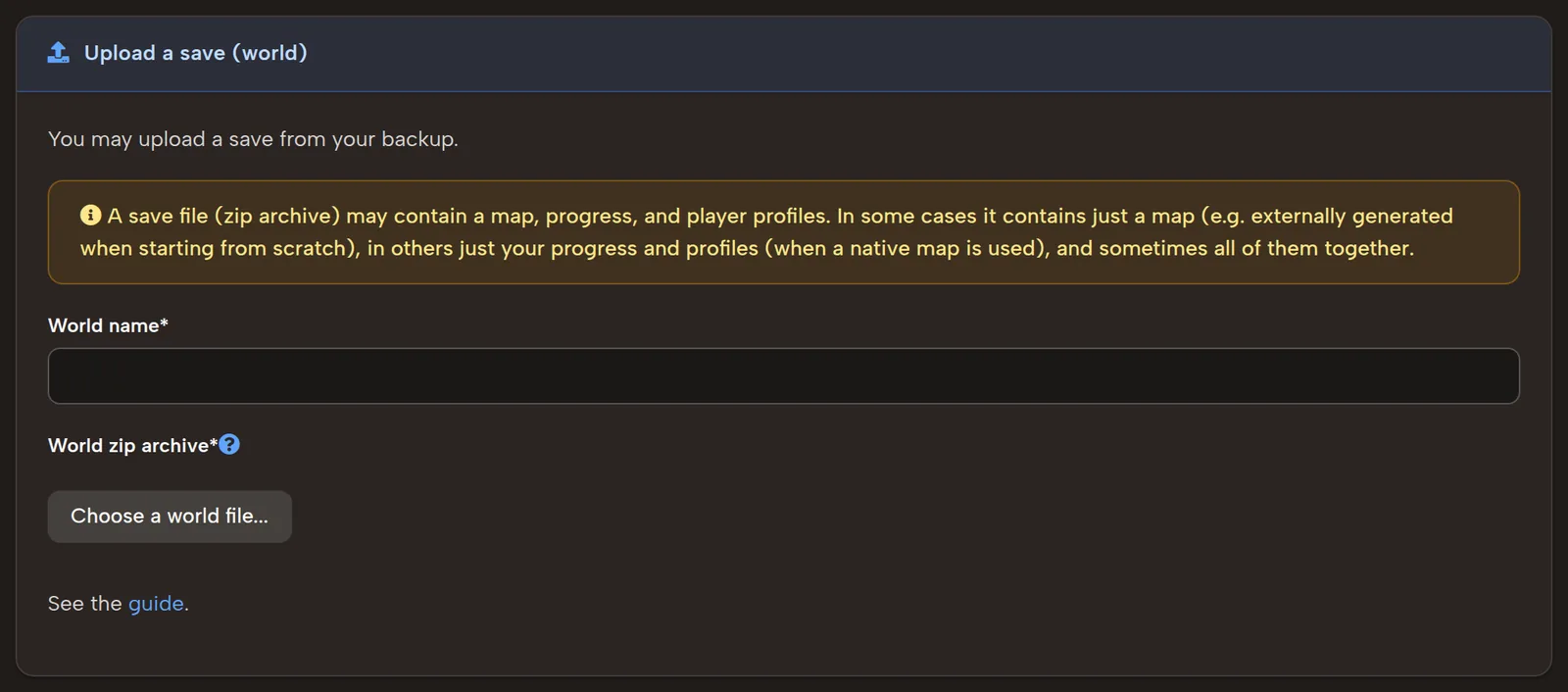
The question mark next to World zip archive opens the help on preparing the archive:
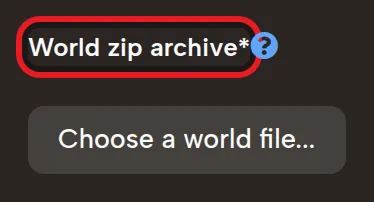
How to prepare the world zip
A saved game on Navezgane (or another premade map):
- Press Win+R, type %AppData%\7DaysToDie and press Enter.
- Copy the whole Saves\Navezgane folder somewhere, for example to the Desktop.
- In the copy, remove every save except the one you want to upload.
- Zip the whole Navezgane folder.
- Set the server to use the Navezgane map.
- Upload the zip.
A saved game on a random (RWG) map:
- Make a new folder, for example on the Desktop, and call it upload.
- From %AppData%\7DaysToDie, copy the whole Saves\YOUR_WORLD_NAME folder into upload.
- In upload\YOUR_WORLD_NAME, remove every save except the one you want to upload.
- In %AppData%\7DaysToDie, open GeneratedWorlds and copy your map's folder into upload too.
- Zip everything in upload into one archive.
- Upload the zip, then activate the world.
A new map from xegen, Teragon or another generator:
- Open %AppData%\7DaysToDie\GeneratedWorlds.
- Zip the folder of your map.
- Upload the zip, then activate the world.
Depending on the file size, the upload takes from a few seconds to a few minutes. Your worlds are listed in the file table, and the one the server runs is marked (active):
Open a world with the arrow to see its archives; Download saves one to your computer, so you can keep a copy and upload it again later. You can keep several worlds in the list.
A freshly uploaded world is not active yet. Click Activate and confirm: the server restarts on that world. Where the game keeps its saves: 7 Days to Die dedicated server save location.
Change server settings
Go to My servers > Configure > Settings.

Every setting shows a short description under its name:

After any change, click Save & restart at the bottom of the page. The changes apply when the server is back up.
V3.0 "Dead Hot Summer" moved most gameplay tuning out of serverconfig.xml into the in-game Sandbox options and SandboxCode, which the panel exposes. See 3.0 for details, and our serverconfig.xml guide for the settings that stayed.
How to use the web console
Go to My servers > Manage Server > Console, type a command and click Send:
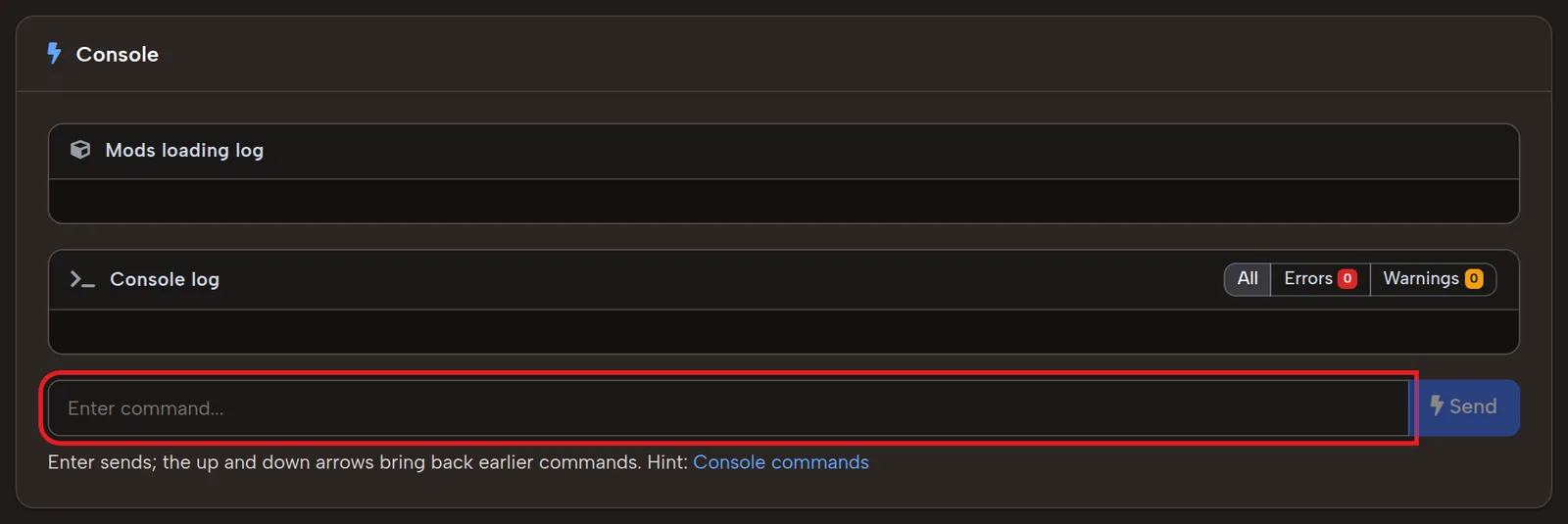
The result shows in the console log above the command line.
Find the right command
Click Hint to see every console command:
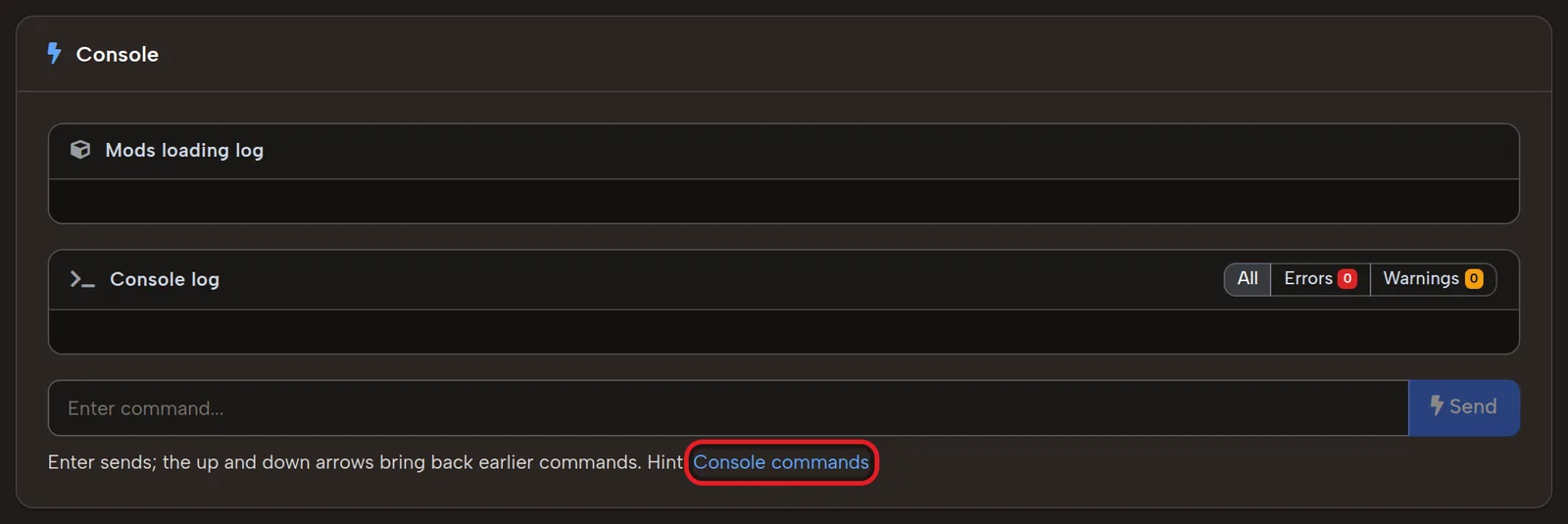
Or browse our console commands list.
Turn on the creative menu
To open the creative menu in your world, type creativemenu (or its short form, cm) and click Send:
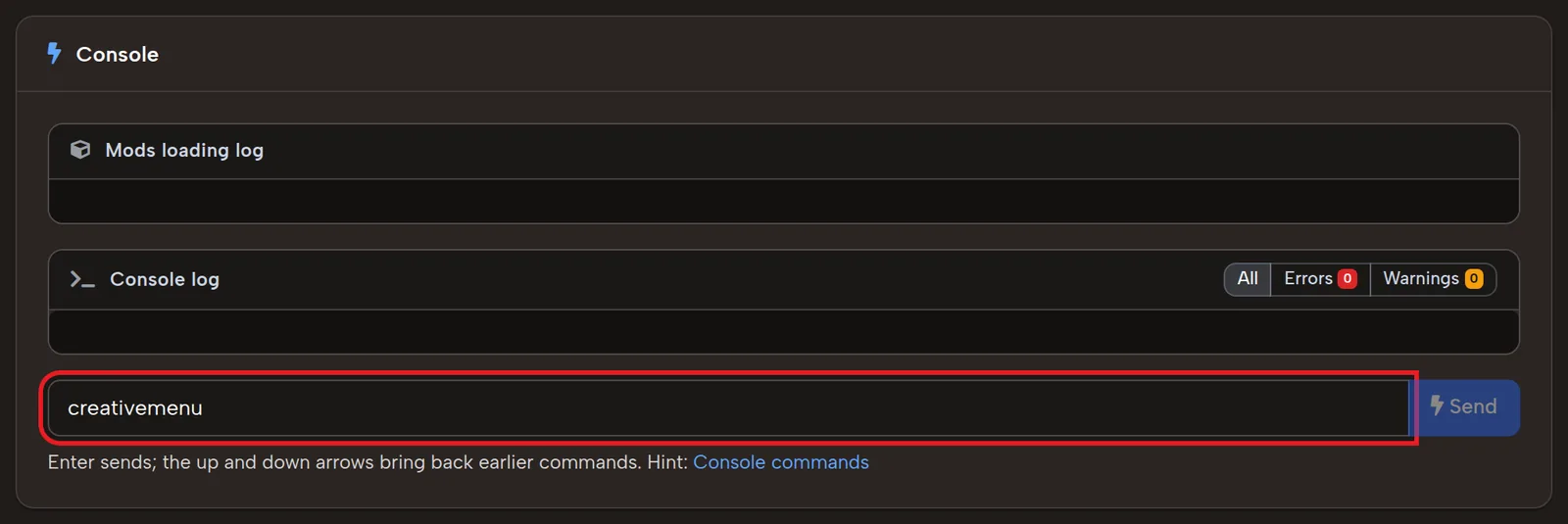
The result shows in the console log above the command line.
Troubleshooting
Find errors in the console log
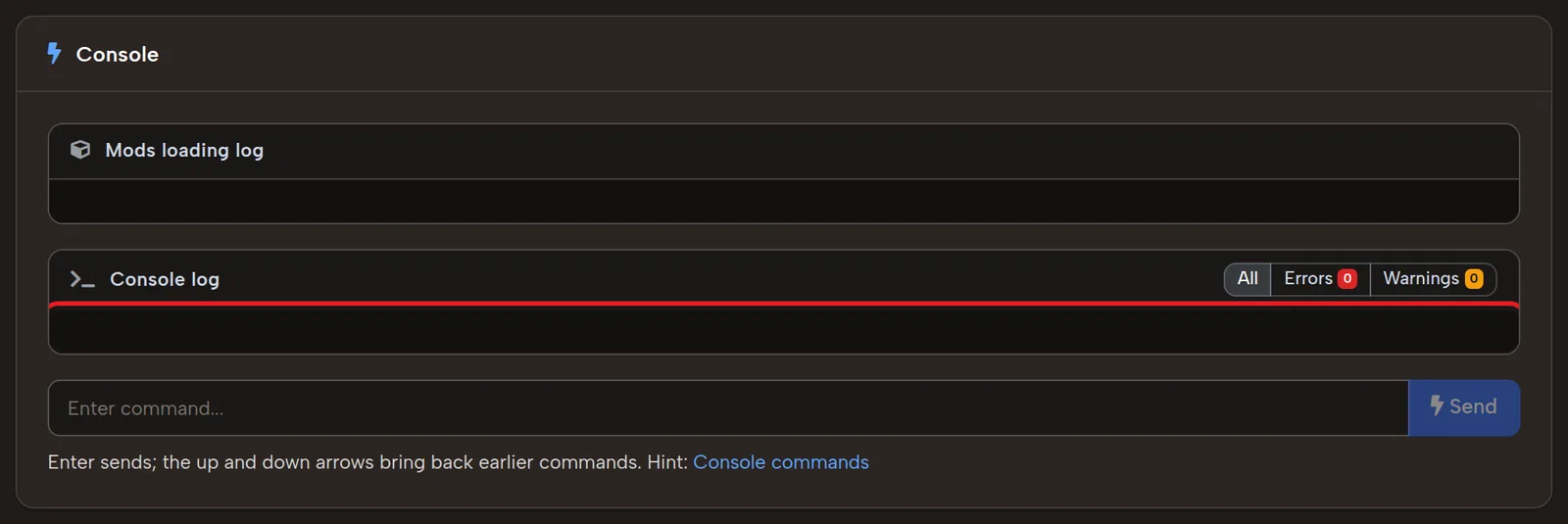
Go to My servers > Manage Server > Console. Errors show in the console log:
Roll back a save with Backup & Fix
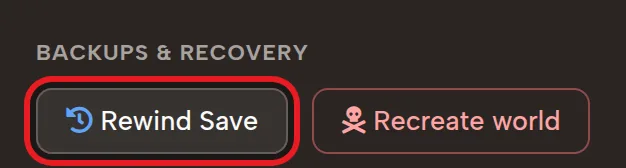
Go to My servers > Manage Server > Server management and click Rewind Save under Backups & recovery:
The Backup & Fix tool opens:
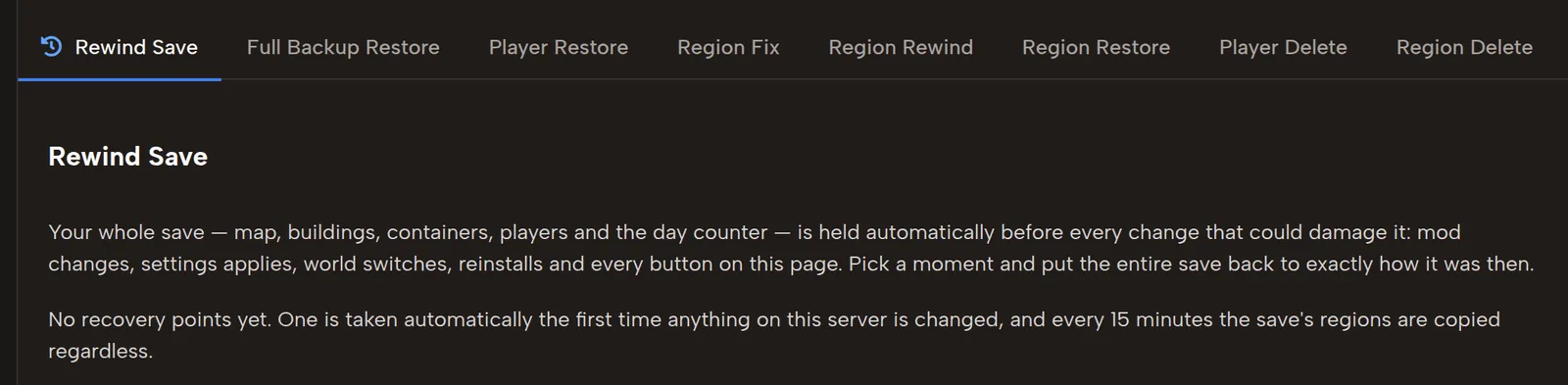
From here you can:
- Full Backup Restore: go back to one of your earlier backups.
- Player Restore: bring back an earlier version of a player, with their level, items and so on.
- Region Restore: bring back an earlier version of a region, a piece of the map.
- Player Delete: delete a player's saved version.
- Region Delete: delete a region's saved version.
Schedule restarts and commands
Go to My servers > Manage Server > Server management and open Scheduler (Plan M and up):

A task either restarts the server or runs a console command. Pick one, type the command (for a command task), set the time and click Add task. Your tasks show at the top of the page:

To remove a task, click Remove Task next to it.
Players cannot connect
Go to My servers > Configure and find Server Disabled Network Protocols:

Make sure it is set to Steam networking off, direct connection (the default), click Save & restart and try again.
Still no luck, and only PC players join? Find EAC Enabled:

Switch it off, click Save & restart and try again. Leave EAC on if console players join: crossplay needs it.
Billing and plan upgrades
Payment history
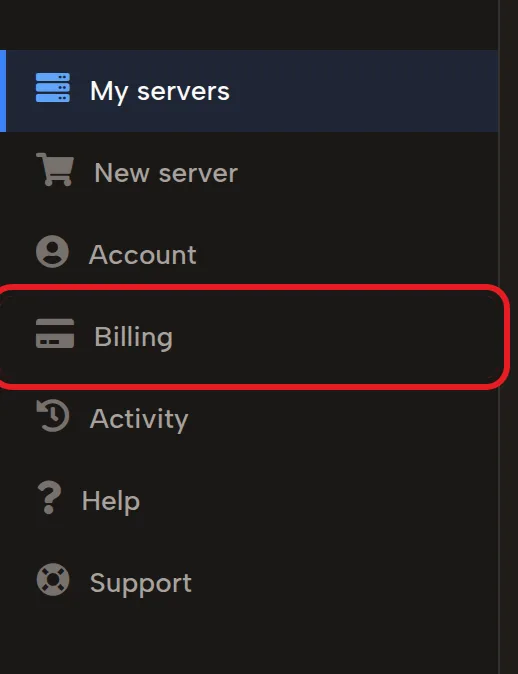
Click Billing in the panel menu:
It lists every payment you have made:

Upgrade your plan
Go to My servers and click Upgrade Plan:

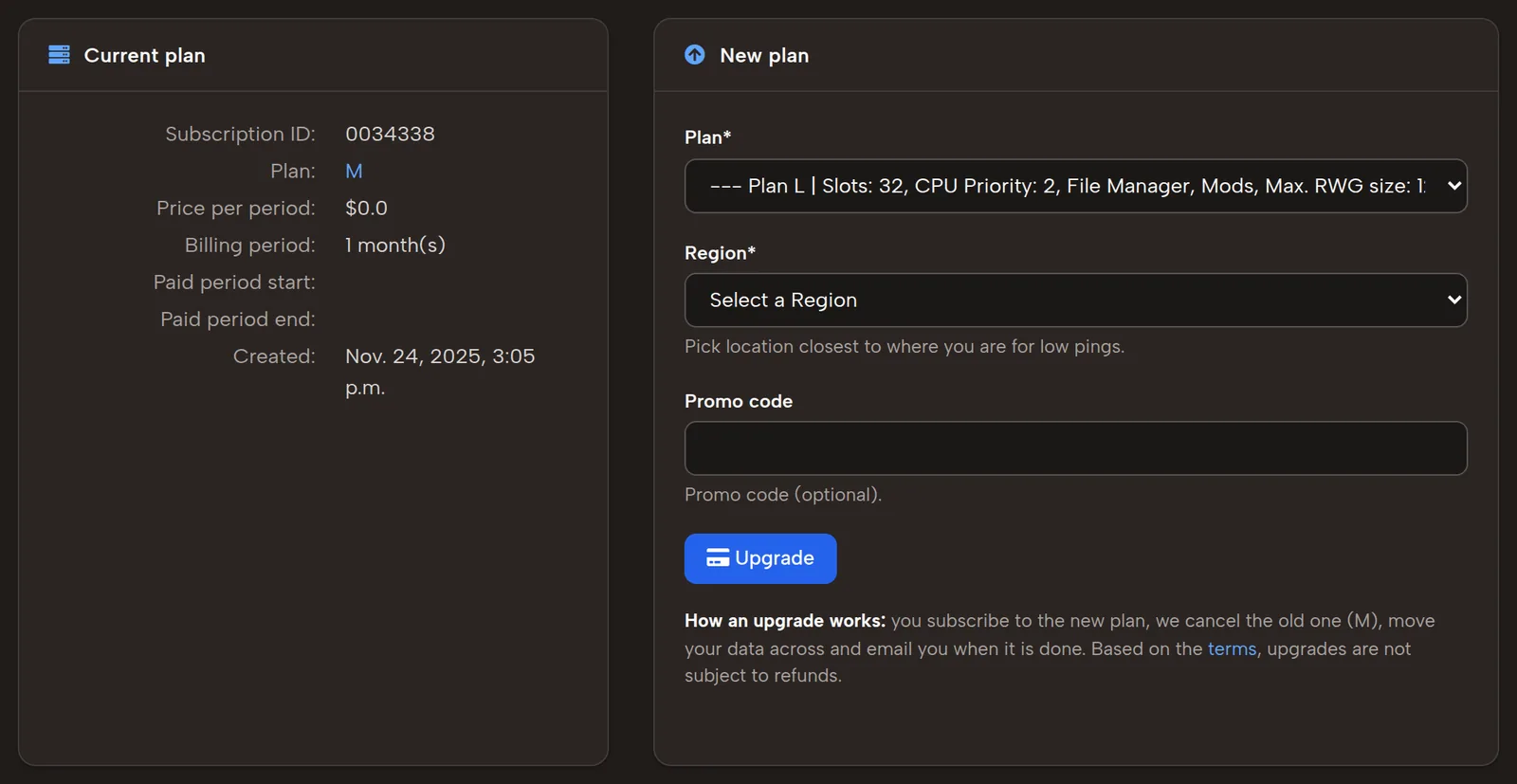
The upgrade page shows your current plan and the new one:
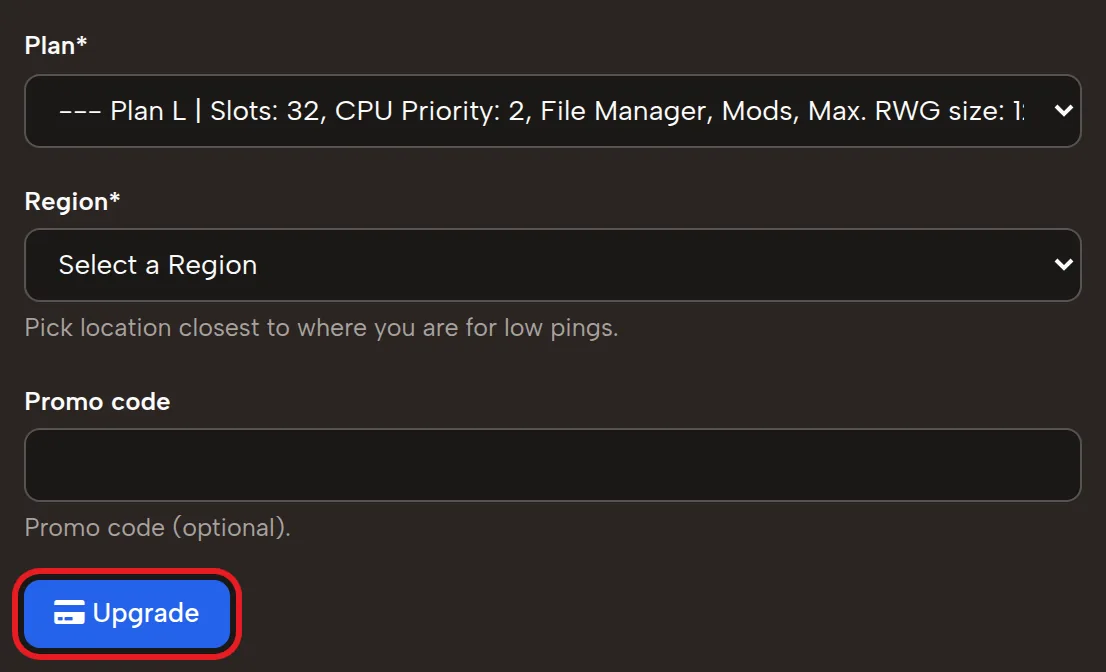
Choose the new plan at the bottom of the page and click Upgrade:
Change your card or payment method
Contact support and we will change it for you.
FTP, telnet and CSMM
FTP access
Plans M, L and XL include FTP, so you can upload custom worlds and mods directly. Connection details, the folder layout and troubleshooting are in the FTP access guide.
Telnet access
Telnet lets an external admin tool send commands and read live server output. How to enable it and connect: telnet access guide.
CSMM server manager
Add your server to CSMM with its IP, telnet port and telnet password. For the map viewer, add Allocs Server Fixes over FTP or through Files & Mods (Plans M, L and XL). Step by step: CSMM setup guide.
FAQ
How do I make my 7 Days to Die server private?
Add at least one player to Allowed players in My servers > Configure > Players. From then on only players on that list can join. You can also set a server password in the settings and click Save & restart.
How do I make myself admin on my 7 Days to Die server?
Add your Steam ID to Admins in My servers > Configure > Players. The panel writes it to serveradmin.xml with permission level 0, the highest, so you can use every console command, including cm for the creative menu.
How do I upload my single player world to the server?
Zip the world's save folder, plus its map folder from GeneratedWorlds for a random world, and upload the zip in Files & Mods. Then click Activate on the new world and confirm: the server restarts on it.
Can I roll back my server to an earlier save?
Yes. In My servers > Manage Server > Server management, click Rewind Save. The Backup & Fix tool restores a full backup, or only one player or one region of the map.
How do I install mods on my 7 Days to Die server?
On Plan M and up, open Files & Mods in My servers > Manage Server > Server management, type the mod's name, choose its zip file and click Upload. Overhauls such as Darkness Falls install in one click from Configure > Distributions & ModPacks.
Why can't players connect to my server?
Check that they use the address and port from the Connect box. If they still cannot join, set Server Disabled Network Protocols to Steam networking off, direct connection and click Save & restart. On a server with only PC players, switching EAC off is the last step; leave it on if console players join, because crossplay needs it.